Search

Applied Biosystems™
Custom TaqMan™ SNP 基因分型分析,非人类
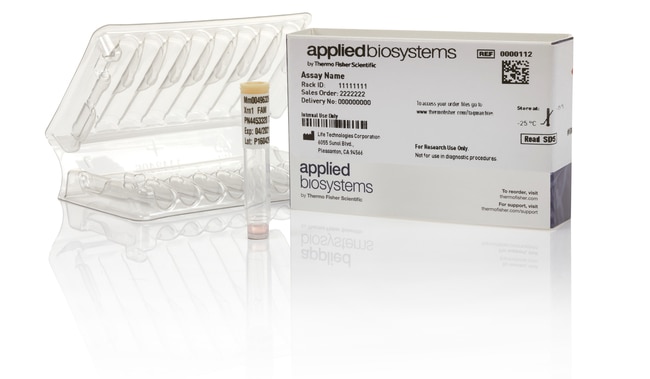
Applied Biosystems TaqMan SNP 基因分型Assay使用 TaqMan 5´核酸酶化学试剂扩增和检测纯化基因组 DNA 样品中的特定多态性。每项Assay可对个体进行单核苷酸多态性了解更多信息
Have Questions?
更改视图

| 货号 | 数量 |
|---|---|
| 4332077 | S (300 reactions), made to order |
| 4332075 | M (1000 reactions), made to order |
| 4332076 | L (2400 reactions), made to order |
货号 4332077
价格(CNY)
5,659.00
Each
数量:
S (300 reactions), made to order
Applied Biosystems TaqMan SNP 基因分型Assay使用 TaqMan 5´核酸酶化学试剂扩增和检测纯化基因组 DNA 样品中的特定多态性。每项Assay可对个体进行单核苷酸多态性 (SNP) 基因分型,包括两个序列特异性引物和两个 TaqMan 小沟结合物 (MGB) 探针以及非荧光淬灭剂 (NFQ)。一个探针标记 VIC 染料以检测等位基因 1 序列;第二个探针标记 FAM 染料以检测等位基因 2 序列。
通过向我们安全可靠的定制Assay设计工具保密提交靶标序列,您可以轻松设计 Custom TaqMan SNP 基因分型Assay,无额外收费。该工具可以生成针对任何生物体中任何 SNP 的Assay设计,提供较大的灵活性以满足您的研究需求。
优势:
•经证明—金标准 TaqMan 化学和稳健的Assay设计提供了准确、可重现和可靠的结果
•简单—便利的单管形式和简单的工作流程提供了获得可靠结果简易途径;无需优化
•灵活—使用我们的安全定制Assay设计工具获得针对任何生物体中任何 SNP 的Assay设计,无需额外收费
•检测—对于合成准确度和配方完整性,所有定制Assay均为质量控制检测
大致运输时间
北美 4–6 天,欧洲 6–10 天
自由定制Assay设计工具可生成用于检测 SNP、MNP 以及多达六个碱基的插入缺失的检测。对这些定制Assay进行设计、合成、配制、优化和质量控制检测。
对于 PCR,TaqMan SNP 基因分型Assay仅需要三种反应组分:纯化基因组 DNA (1–20 ng)、分析溶液和 TaqMan 基因分型预混液(或另一种兼容预混液)(单独销售)。
所有Assay设计均是我们行业领先的生物信息学管线的产物,通过利用生产和分析性能数据在十多年的时间内进行了优化。TaqMan Assay已被超过 40,000 篇出版物引用,并且获得超过 350 项专利的支持。
推荐的预混液(单独销售):TaqMan 基因分型预混液
通过向我们安全可靠的定制Assay设计工具保密提交靶标序列,您可以轻松设计 Custom TaqMan SNP 基因分型Assay,无额外收费。该工具可以生成针对任何生物体中任何 SNP 的Assay设计,提供较大的灵活性以满足您的研究需求。
优势:
•经证明—金标准 TaqMan 化学和稳健的Assay设计提供了准确、可重现和可靠的结果
•简单—便利的单管形式和简单的工作流程提供了获得可靠结果简易途径;无需优化
•灵活—使用我们的安全定制Assay设计工具获得针对任何生物体中任何 SNP 的Assay设计,无需额外收费
•检测—对于合成准确度和配方完整性,所有定制Assay均为质量控制检测
大致运输时间
北美 4–6 天,欧洲 6–10 天
自由定制Assay设计工具可生成用于检测 SNP、MNP 以及多达六个碱基的插入缺失的检测。对这些定制Assay进行设计、合成、配制、优化和质量控制检测。
对于 PCR,TaqMan SNP 基因分型Assay仅需要三种反应组分:纯化基因组 DNA (1–20 ng)、分析溶液和 TaqMan 基因分型预混液(或另一种兼容预混液)(单独销售)。
所有Assay设计均是我们行业领先的生物信息学管线的产物,通过利用生产和分析性能数据在十多年的时间内进行了优化。TaqMan Assay已被超过 40,000 篇出版物引用,并且获得超过 350 项专利的支持。
推荐的预混液(单独销售):TaqMan 基因分型预混液
仅供科研使用。不可用于诊断程序。
规格
最大浓度40X
适用于(设备)7500 System, 7500 Fast System, 7900HT System, StepOne™, StepOnePlus™, ViiA™ 7 System, QuantStudio™ Absolute Q Digital PCR System, QuantStudio™ 3, QuantStudio™ 5, QuantStudio™ 6 Flex, QuantStudio™ 7 Flex, QuantStudio 6 Pro, QuantStudio 7 Pro, QuantStudio™ 12k Flex ProFlex PCR System*, VeritiPro*, SimpliAmp*, MiniAmp*, Automated Thermal Cycler** If a thermal cycler is used for PCR amplification, the optional pre-read and the post-read must be performed separately on a real-time PCR system in order to detect and record fluorescent signals.
反应次数1500(384 孔);300(96 孔)
产品线TaqMan
产品类型Custom TaqMan 基因分型
数量S (300 reactions), made to order
运输条件室温
样品类型非人
Unit SizeEach
内容与储存
1含 40X(S 和 M 规格)或 80X(L 规格)预配Assay(2 探针和 2 引物)混合物的试管。
在 -15 至 -25°C 下储存。
在 -15 至 -25°C 下储存。