Search

Applied Biosystems™
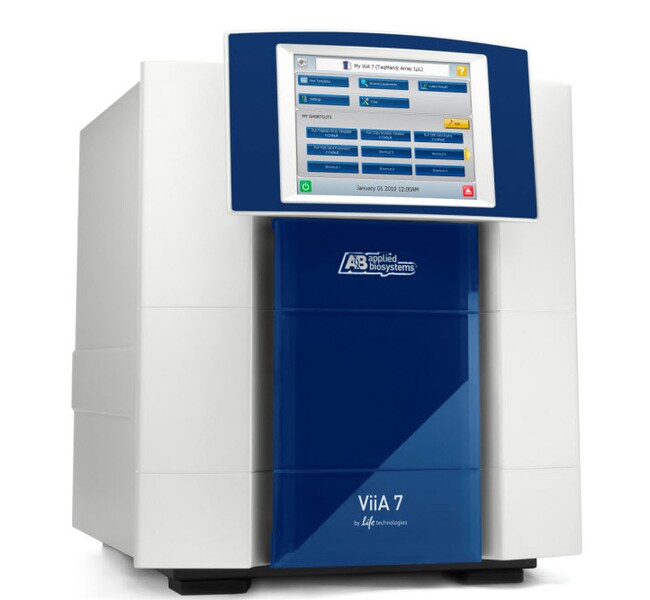
ViiA™ 7 实时荧光定量 PCR 系统,配备 96 孔模块
ViiA™ 7 实时荧光定量 PCR 系统将您期望的所有 qPCR 功能结合在一台高性能仪器中,从而可优化您的研究生产力。ViiA™ 7 系统配有简化的工作流程了解更多信息
| 货号 | 数量 |
|---|---|
| 4453534 | 1 instrument |
货号 4453534
价格(CNY)
-
数量:
1 instrument
ViiA™ 7 实时荧光定量 PCR 系统将您期望的所有 qPCR 功能结合在一台高性能仪器中,从而可优化您的研究生产力。ViiA™ 7 系统配有简化的工作流程、直观的软件、触摸屏界面和一键式操作方案,可尽可能减少出错概率,提供优异的重现性,并尽可能减少孔间和仪器间差异。其可与任何标准或快速循环型 384 或 96 孔板及 TaqMan™ 阵列微流体卡和试剂完全兼容,可让任意规模的实验室实现高工作效率实时荧光定量 PCR。
•经证实的 Applied Biosystems™ 可靠性和准确性。
•配合 TaqMan™ 阵列微流体卡一起使用可提供集成工作流程并更快得到结果。
•易于使用 – 直观的软件、响应触摸屏、自动化、无需任何工具的轻松模块交换。
工作效率
ViiA™ 7 系统非常适合执行中高通量实时荧光定量 PCR,可提高实验室的工作效率。
• 快速模块更改:前面板访问,无需移动连接的外围设备(如自动化设备或计算机)即可轻松更改热循环模块规格。
•简单触摸屏界面:仪器触摸屏提供一触式方案,可快速、轻松地对多种应用进行检测设置。
•自动化兼容性:ViiA™ 7 系统集成了 Applied Biosystems™ Twister™ II 自动化设备,可尽可能提高自动化环境下的工作效率。
• 安心:可恢复 100 次以上运行的数据。
集成
完全兼容 TaqMan™ 阵列微流体卡,Applied Biosystems™ TaqMan™ 检测是 qPCR 分析的金标准,可提供高灵敏度、高特异性和宽动态范围。
•TaqMan™ 阵列就绪:提供数百种可定制和预定义 TaqMan™ 阵列微流体卡,其中包含易于使用的预载 TaqMan™ 基因表达或 MicroRNA 检测。您可以使用您选择的 12–384 TaqMan™ 检测并行分析 1–8 份样品。
• 384 孔通量,无需自动化设备:使用 TaqMan™ 阵列微流体卡,无需使用液体处理自动化设备或复杂移液器装载;只需添加样品和预混液,在 ViiA™ 7 系统上运行即可。
•与全系列 TaqMan™ 检测兼容:ViiA™ 7 系统经过优化,可为所有 TaqMan™ 检测(包括 MicroRNA 检测、蛋白检测、长非编码 RNA 检测和 Pri-miRNA 检测)提供清晰、纯净数据
性能
ViiA™ 7 系统采用了新的 OptiFlex™ 系统,该系统提供增强的荧光检测,从而实现准确和灵敏的数据分析。
• 更好的准确度:高分辨率检测系统,实现对 TaqMan™ 阵列微流体卡、384 孔板和 96 孔板的更准确读取。
• 多个多通路分析:6 个解耦激发和发射滤光片通道,实现较多数量的染料组合和较大的多通路分析能力。
•灵活的数据采集:多种升温方法检测形式,在升温阶段灵活采集数据。
•精确定量测定:检测单重反应中低至 1.5 倍的靶标数量变化
ViiA™ 7 软件
ViiA™ 7 软件可以多种方式得出值,并提供:
•直观界面和创新设计
• 便利的无人值守操作
• 改进的数据分析
• 完全兼容高通量环境
可扩展的软件架构
可选的加载项能够为现有软件升级新功能
• 21 CFR 第 11 部分合规性:此可选 SAE 模块有助于记录的安全性、稽查和电子签名,以实现完整数据的可追溯性。
• 高分辨率熔解 (HRM):使用内置的 MeltDoctor™ 方案和校准,您可以花费更少时间优化运行以及使用更多时间自定义您的结果。通过快速更改分析设置定义要查看的变体数量。
仅供科研使用。不适用于诊断用途。
•经证实的 Applied Biosystems™ 可靠性和准确性。
•配合 TaqMan™ 阵列微流体卡一起使用可提供集成工作流程并更快得到结果。
•易于使用 – 直观的软件、响应触摸屏、自动化、无需任何工具的轻松模块交换。
工作效率
ViiA™ 7 系统非常适合执行中高通量实时荧光定量 PCR,可提高实验室的工作效率。
• 快速模块更改:前面板访问,无需移动连接的外围设备(如自动化设备或计算机)即可轻松更改热循环模块规格。
•简单触摸屏界面:仪器触摸屏提供一触式方案,可快速、轻松地对多种应用进行检测设置。
•自动化兼容性:ViiA™ 7 系统集成了 Applied Biosystems™ Twister™ II 自动化设备,可尽可能提高自动化环境下的工作效率。
• 安心:可恢复 100 次以上运行的数据。
集成
完全兼容 TaqMan™ 阵列微流体卡,Applied Biosystems™ TaqMan™ 检测是 qPCR 分析的金标准,可提供高灵敏度、高特异性和宽动态范围。
•TaqMan™ 阵列就绪:提供数百种可定制和预定义 TaqMan™ 阵列微流体卡,其中包含易于使用的预载 TaqMan™ 基因表达或 MicroRNA 检测。您可以使用您选择的 12–384 TaqMan™ 检测并行分析 1–8 份样品。
• 384 孔通量,无需自动化设备:使用 TaqMan™ 阵列微流体卡,无需使用液体处理自动化设备或复杂移液器装载;只需添加样品和预混液,在 ViiA™ 7 系统上运行即可。
•与全系列 TaqMan™ 检测兼容:ViiA™ 7 系统经过优化,可为所有 TaqMan™ 检测(包括 MicroRNA 检测、蛋白检测、长非编码 RNA 检测和 Pri-miRNA 检测)提供清晰、纯净数据
性能
ViiA™ 7 系统采用了新的 OptiFlex™ 系统,该系统提供增强的荧光检测,从而实现准确和灵敏的数据分析。
• 更好的准确度:高分辨率检测系统,实现对 TaqMan™ 阵列微流体卡、384 孔板和 96 孔板的更准确读取。
• 多个多通路分析:6 个解耦激发和发射滤光片通道,实现较多数量的染料组合和较大的多通路分析能力。
•灵活的数据采集:多种升温方法检测形式,在升温阶段灵活采集数据。
•精确定量测定:检测单重反应中低至 1.5 倍的靶标数量变化
ViiA™ 7 软件
ViiA™ 7 软件可以多种方式得出值,并提供:
•直观界面和创新设计
• 便利的无人值守操作
• 改进的数据分析
• 完全兼容高通量环境
可扩展的软件架构
可选的加载项能够为现有软件升级新功能
• 21 CFR 第 11 部分合规性:此可选 SAE 模块有助于记录的安全性、稽查和电子签名,以实现完整数据的可追溯性。
• 高分辨率熔解 (HRM):使用内置的 MeltDoctor™ 方案和校准,您可以花费更少时间优化运行以及使用更多时间自定义您的结果。通过快速更改分析设置定义要查看的变体数量。
仅供科研使用。不适用于诊断用途。
仅供科研使用。不可用于诊断程序。
规格
检测方法SYBR,引物探针检测
尺寸53.3 cm (21 in.) (W) x 63.5 cm (25 in.) (D) x 64.5 cm (25.4 in.) (H)
显示类型触摸屏
动态范围高达9个对数级线性动态范围
电气要求60 Hz
适用于(设备)ViiA™ 7 系统
产品规格96 孔板
高通量能力兼容高通量应用,多通路(技术)
光学6个发射滤光片 (500-720 nm)、6个激发滤光片 (450-670 nm)、OptiFlex™ 系统(增强荧光检测)
其他规格选项96 孔 Fast 模块升级选项、TaqMan™ 阵列卡模块升级选项、384 孔模块升级选项
有板处理功能自动化包括带条形码的板加载臂、选配自动化配件机械臂
产品线ViiA
程序远程监测多达 10 台仪器
数量1 instrument
反应速度标准
反应体积范围10-100 µL
分辨率检测低至 1.5 倍的靶标数量变化(单重反应)
运行时间约35分钟(因试剂和其他因素而异)
灵敏度低至1拷贝
温度范围(公制)4 至 100°C
热量均匀性±0.5°C
电压100 至 240 V
重量60.7 kg
模块规格可互换
容量1 × 96 孔板
Unit SizeEach
内容与储存
96孔模块