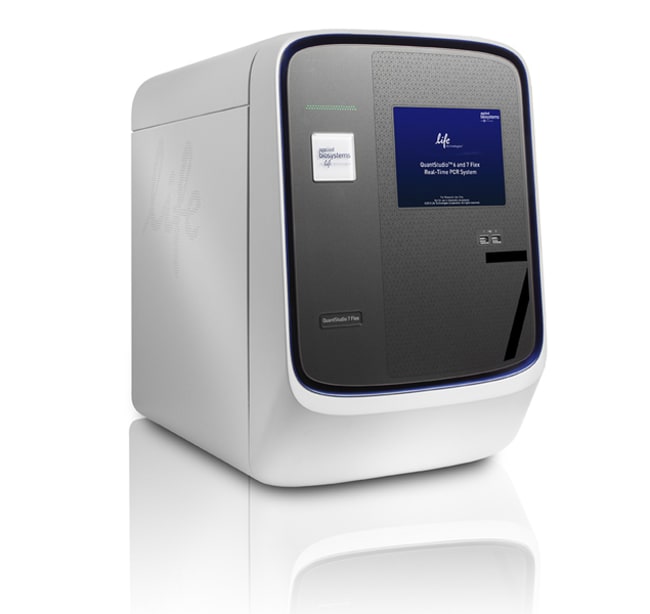
QuantStudio™ 7 Flex 实时荧光定量 PCR 系统,96 孔快速,台式计算机
Applied Biosystems™

QuantStudio™ 7 Flex 实时荧光定量 PCR 系统,96 孔快速,台式计算机

Applied Biosystems® QuantStudio™ 7 Flex 实时荧光定量 PCR 系统通过其多通路功能和可互换模块形式实现多种基于实时荧光定量 PCR 的应用,从而进一步推进您的研究了解更多信息
Have Questions?
货号数量
44856931 system
货号 4485693
价格(CNY)
-
申请报价
数量:
1 system
Applied Biosystems® QuantStudio™ 7 Flex 实时荧光定量 PCR 系统通过其多通路功能和可互换模块形式实现多种基于实时荧光定量 PCR 的应用,从而进一步推进您的研究。通过简化的工作流程、直观的软件、自动化功能和触摸屏界面,QuantStudio™ 7 Flex 系统可提供极佳的重现性,并且具有极小的孔间和仪器间差异。

QuantStudio™ 7 Flex 实时荧光定量 PCR 系统的特点包括:

•通过更换 4 种不同类型模块,增加应用的多功能性
•与超过 8 百万 TaqMan® Assay兼容,用于基因表达、基因变异、基因调控或蛋白表达实验
•QuantStudio™ 平台的智能设计与 Applied Biosystems® 仪器的可靠性和准确性相结合
•易于使用的软件、响应触摸屏、自动化功能以及无需任何工具的轻松模块交换

Thermo Fisher Cloud
Thermo Fisher Cloud 为科学家储存、分析和共享数据提供了一个安全平台。Thermo Fisher Cloud 中的 Applied Biosystems qPCR 分析模块是基于网络浏览器的软件工具,灵活、快速且易于使用。这些工具与 Mac 或 PC 以及大多数 Applied Biosystems 仪器文件类型兼容。

>>下载 QuantStudio™ 7 软件 90 天试用版

QuantStudio™ 7 Flex 系统可实现96 孔、96 孔快速、384 孔或 TaqMan® 阵列卡封闭的互换。系统自带一种模块类型(为 96 孔快速模块);其他模块类型可单独购买。此外,该系统还可以与 Twister® 自动化附件连接,以支持高通量工作流程。对于不支持 TaqMan® 阵列卡或自动化操作(但可以在后期升级以支持该操作)但更具价值的系统,请参见我们的 QuantStudio Pro ™6 Flex 系统。为实现极高的灵活性,请考虑 TaqMan® OpenArray® 板的 QuantStudio™ 12K Flex 系统。

实现更多、更快
使用 TaqMan® 阵列 384 孔微流控卡轻松运行数百次实时荧光定量 PCR 反应。当与 Twister® 自动化附件(单独提供)集成时,QuantStudio™ 7 Flex 系统会尽可能增加您通量能力。

高应用多功能性
可提供简单工作流程、可靠的测定和试剂、多种规格以及直观的软件用于多种应用,包括基因表达、基因变异、基因调控、高分辨率熔解 (HRM) 和 Protein Thermal Shift™ 实验等。

值得信赖的结果
使用 OptiFlex™ 系统可提高孔间和仪器间的数据准确度,该系统具有含 21 个滤光片组合的 6 个激发和发射滤光片通道,以尽可能增加多通路和化学灵活性。

敏感数据分析
检测单重反应中低至 1.5 倍的靶标数量变化,并获得 10 对数的线性动态范围。
仅供科研使用。不可用于诊断程序。
规格
显示类型触摸屏
适用于(设备)QuantStudio™
产品规格96 孔板
产品线QuantStudio™
数量1 system
模块规格可互换
Unit SizeEach
内容与储存
台式计算机

常见问题解答 (FAQ)

When using the QuantStudio 6 or QuantStudio 7 Software version 1.0, I get the error message "Unable to start the run" when starting a new run. What can I do?

We recommend that you send the run file to the QuantStudio 6 or QuantStudio 7 Real-Time PCR instrument and start the run from the instrument touchscreen. Additionally, you can upgrade to v1.3 or above of the QuantStudio Real-Time PCR software and you will not have this error message show up.

Find additional tips, troubleshooting help, and resources within our Real-Time PCR and Digital PCR Instruments Support Center.

How do I activate or renew my software license in the QuantStudio 6 or QuantStudio 7 Real-Time PCR System?

Please follow the instructions found in the Software Licensing Quick Reference Guide at https://fnoclient.gss.tf/quick-start-guide to activate or renew a license for the QuantStudio 6 or QuantStudio 7 Real-Time PCR System. If you have a license key associated with a computer that is no longer in use, please follow the instructions to "Transfer a license to a different user or computer" in the above guide.

Find additional tips, troubleshooting help, and resources within our Real-Time PCR and Digital PCR Instruments Support Center.

What should I do if the software will not connect to the QuantStudio 6 or QuantStudio 7 Real-Time PCR System?

After launching the QuantStudio software, go to the Maintenance Manager. Check if the QuantStudio system icon is present in the “On the Network” window. If not, click on the ‘Refresh' button to the left of ‘Remove from My Instruments'. If you still do not see the QuantStudio system icon for the following reasons:

- There is an icon but you cannot add it into the "My Instruments" area
- There is a red “X” on the instrument
- A message says "Disconnected" at the bottom of the window with a red “X” in it
then you will need to add the Instrument into the ‘My Instruments' area. Click on the wrench icon in the upper right-hand corner of the icon as pictured below. You may get a message that says the firmware is older than the one you're trying to run. If appropriate, choose to download the new firmware and let it progress to finish. Do not turn off the instrument during this update. After the firmware update is completed, restart the instrument and check for the QuantStudio system icon in ‘On the Network' area.

Find additional tips, troubleshooting help, and resources within our Real-Time PCR and Digital PCR Instruments Support Center.

What can I do when I get an error message related to "...JVM..."?

This error can occur due to allocation of the computer's virtual memory. If you see this message, try the following:

1. Click ‘OK' to the error, close any unnecessary programs, and re-launch the software (you may have to do this several times).
2. Using the Task Manager (Control+Alt+Delete), look for a process called ‘javaw.exe'. Select this line and end the process. Then re-launch the software.

Find additional tips, troubleshooting help, and resources within our Real-Time PCR and Digital PCR Instruments Support Center.

On the QuantStudio 6 and 7 Flex instruments, what does the error “Calibration file already exists” mean?

The calibration files are stored on the QuantStudio 6/7 Flex instrument itself; therefore, when you need to perform a new calibration, you will have to delete the old calibration files. From the instrument console, go to the QuantStudio 6/7 Flex instrument touchscreen and select ‘Collect Results'. You should then see a list of files stored on the instrument. Manually select a calibration file such as “Fast-96-cal”, and press the ‘Delete' button to remove the old calibration file. Occasionally, users cannot delete the file off the instrument and may encounter this error: “Some experiments did not collect results therefore cannot be deleted.”. In these situations, launch the software, go to ‘maintenance', manage files, and download the calibration file. The status of the experiment should be displayed as ‘complete'. Next, delete the old calibration file and rerun the calibration.

Find additional tips, troubleshooting help, and resources within our Real-Time PCR and Digital PCR Instruments Support Center.