Search

Applied Biosystems™
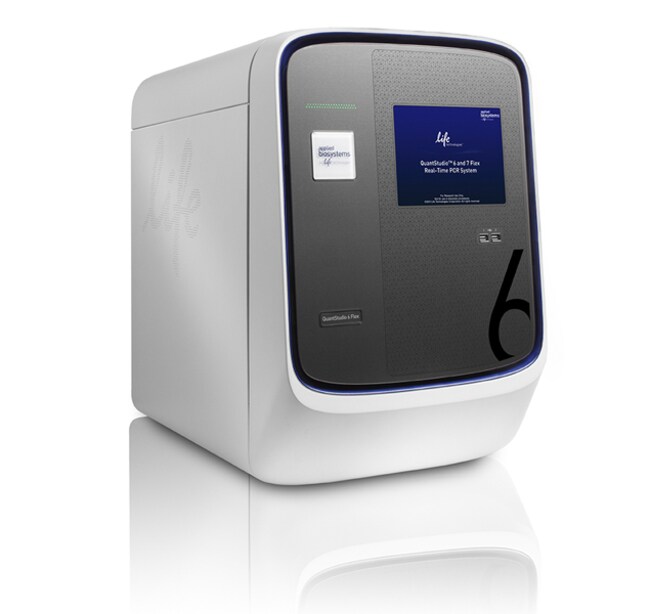
QuantStudio™ 6 Flex 实时荧光定量 PCR 系统,384 孔,台式计算机
Applied Biosystems® QuantStudio™ 6 Flex 实时荧光定量 PCR 系统通过可升级的模块选择促进基于实时荧光定量 PCR 的应用,使您能够目前计划实验,并根据未来的需求进行增长了解更多信息
| 货号 | 数量 |
|---|---|
| 4485694 | 1 system |
货号 4485694
价格(CNY)
-
数量:
1 system
Applied Biosystems® QuantStudio™ 6 Flex 实时荧光定量 PCR 系统通过可升级的模块选择促进基于实时荧光定量 PCR 的应用,使您能够目前计划实验,并根据未来的需求进行增长。通过简化的工作流程、直观的软件和触摸屏界面,QuantStudio™ 6 Flex 系统可提供极佳的重现性,价格优惠。
QuantStudio™ 6 Flex 实时荧光定量 PCR 系统的特点包括:
•优惠的价格使您以较小的前期投资即可获得高性能仪器
•与超过 8 百万 TaqMan® Assay兼容,用于基因表达、基因变异、基因调控或蛋白表达实验
•QuantStudio™ 平台的智能设计与 Applied Biosystems® 仪器的可靠性和准确性相结合
•易于使用的软件、响应触摸屏、自动化功能以及无需任何工具的轻松模块交换
Thermo Fisher Cloud
Thermo Fisher Cloud 为科学家储存、分析和共享数据提供了一个安全平台。Thermo Fisher Cloud 中的 Applied Biosystems qPCR 分析模块是基于网络浏览器的软件工具,灵活、快速且易于使用。这些工具与 Mac 或 PC 以及大多数 Applied Biosystems 仪器文件类型兼容。
>>下载 QuantStudio™ 6 软件 90 天 试用版
QuantStudio™ 6 Flex 系统可实现96 孔、96 孔快速或 384 孔模块的互换。系统自带一种模块类型(为 384 孔模块);其他模块类型可单独购买。对于同样支持 TaqMan® 阵列卡或自动化操作的系统,请参见我们的 QuantStudio Pro ™7 Flex 系统。根据您的需要,QuantStudio™ 6 Flex 系统也可以在以后升级为 QuantStudio™ 7 Flex 系统。为实现极高的生产率,请考虑同样使用带 TaqMan® OpenArray® 模块的 QuantStudio ™ 12K Flex 系统。
升级功能(如有需要)
QuantStudio™ 6 Flex 系统可由现场服务工程师无缝升级为 QuantStudio™ 7 Flex 系统,以为您提供额外的自动化、通量和多通路功能。
值得信赖的结果
OptiFlex® 系统术实现了孔间和仪器间的数据准确度优化,并具有 5 个通道。
敏感数据分析
检测单重反应中低至 1.5 倍的靶标数量变化,并获得 10 对数的线性动态范围。
QuantStudio™ 6 Flex 实时荧光定量 PCR 系统的特点包括:
•优惠的价格使您以较小的前期投资即可获得高性能仪器
•与超过 8 百万 TaqMan® Assay兼容,用于基因表达、基因变异、基因调控或蛋白表达实验
•QuantStudio™ 平台的智能设计与 Applied Biosystems® 仪器的可靠性和准确性相结合
•易于使用的软件、响应触摸屏、自动化功能以及无需任何工具的轻松模块交换
Thermo Fisher Cloud
Thermo Fisher Cloud 为科学家储存、分析和共享数据提供了一个安全平台。Thermo Fisher Cloud 中的 Applied Biosystems qPCR 分析模块是基于网络浏览器的软件工具,灵活、快速且易于使用。这些工具与 Mac 或 PC 以及大多数 Applied Biosystems 仪器文件类型兼容。
>>下载 QuantStudio™ 6 软件 90 天 试用版
QuantStudio™ 6 Flex 系统可实现96 孔、96 孔快速或 384 孔模块的互换。系统自带一种模块类型(为 384 孔模块);其他模块类型可单独购买。对于同样支持 TaqMan® 阵列卡或自动化操作的系统,请参见我们的 QuantStudio Pro ™7 Flex 系统。根据您的需要,QuantStudio™ 6 Flex 系统也可以在以后升级为 QuantStudio™ 7 Flex 系统。为实现极高的生产率,请考虑同样使用带 TaqMan® OpenArray® 模块的 QuantStudio ™ 12K Flex 系统。
升级功能(如有需要)
QuantStudio™ 6 Flex 系统可由现场服务工程师无缝升级为 QuantStudio™ 7 Flex 系统,以为您提供额外的自动化、通量和多通路功能。
值得信赖的结果
OptiFlex® 系统术实现了孔间和仪器间的数据准确度优化,并具有 5 个通道。
敏感数据分析
检测单重反应中低至 1.5 倍的靶标数量变化,并获得 10 对数的线性动态范围。
仅供科研使用。不可用于诊断程序。
规格
显示类型触摸屏
适用于(设备)QuantStudio™
产品规格384 孔板
产品线QuantStudio
数量1 system
模块规格可互换
Unit SizeEach
内容与储存
台式计算机