Search

Applied Biosystems™
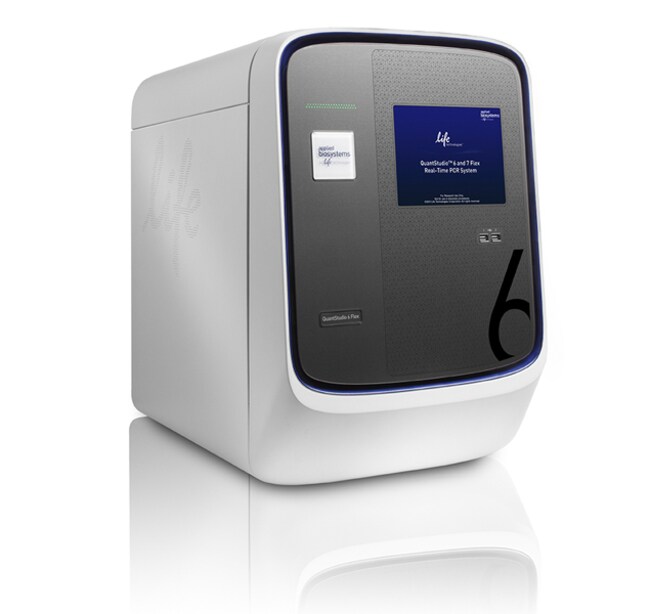
QuantStudio™ 6 Flex 实时荧光定量 PCR 系统,96 孔快速,台式计算机
The Applied Biosystems® QuantStudio™ 6 Flex Real-Time PCR System facilitates real-time PCR based applications with an upgradable block selection, allowing了解更多信息
| 货号 | 数量 |
|---|---|
| 4485697 | 1 system |
货号 4485697
价格(CNY)
-
数量:
1 system
The Applied Biosystems® QuantStudio™ 6 Flex Real-Time PCR System facilitates real-time PCR based applications with an upgradable block selection, allowing you to plan for experiments today and grow with tomorrow’s needs. With a simplified workflow, intuitive software, and touch-screen interface, the QuantStudio™ 6 Flex system offers exceptional reproducibility at a price you can afford.
Features of the QuantStudio™ 6 Flex Real-Time PCR System include:
• Affordable price allows you to obtain a high performance instrument with minimal upfront capital investment
• Compatible with over 8 million TaqMan® assays for gene expression, genetic variation, gene regulation, or protein expression experiments
• The intelligent design of the QuantStudio™ platform combined with Applied Biosystems® instrument reliability and accuracy
• Easy-to-use software, responsive touch-screen, and effortless block exchange without the need for any tools
Thermo Fisher Cloud
Thermo Fisher Cloud provides scientists with a secure place to store, analyze, and share data. Applied Biosystems qPCR Analysis Modules within the Thermo Fisher Cloud are web browser-based software tools that are flexible, fast and easy to use. These software tools are compatible with Mac or PC as well as most Applied Biosystems instrument file types.
>> Download a 90-day trial of the QuantStudio™ 6 software
The QuantStudio™ 6 Flex system accommodates the interchange of a 96-well, 96-well Fast, or 384-well block. The system is delivered with one block type (a 96-well Fast block in this case); other block types may be purchased separately. For a system that also supports TaqMan® array cards, as well as automation, please see our QuantStudio™ 7 Flex system. The QuantStudio™ 6 Flex system can also be upgraded to a QuantStudio™ 7 Flex system at a later date, as your needs change. For the ultimate in productivity, consider the QuantStudio™ 12K Flex system, which also accommodates TaqMan® OpenArray® plates.
Upgrade Capabilities When You Need Them
The QuantStudio™ 6 Flex system can be seamlessly upgraded to a QuantStudio™ 7 Flex system by a field service engineer to give you additional automation, throughput, and multiplexing capabilities.
Results You Can Trust
Improved well-to-well and instrument-to-instrument data accuracy is achieved with the OptiFlex® system, which features 5 coupled excitation and emission filter channels.
Sensitive Data Analysis
Detect changes in target quantity as small as 1.5-fold in single-plex reactions and obtain 10 logs of linear dynamic range.
Features of the QuantStudio™ 6 Flex Real-Time PCR System include:
• Affordable price allows you to obtain a high performance instrument with minimal upfront capital investment
• Compatible with over 8 million TaqMan® assays for gene expression, genetic variation, gene regulation, or protein expression experiments
• The intelligent design of the QuantStudio™ platform combined with Applied Biosystems® instrument reliability and accuracy
• Easy-to-use software, responsive touch-screen, and effortless block exchange without the need for any tools
Thermo Fisher Cloud
Thermo Fisher Cloud provides scientists with a secure place to store, analyze, and share data. Applied Biosystems qPCR Analysis Modules within the Thermo Fisher Cloud are web browser-based software tools that are flexible, fast and easy to use. These software tools are compatible with Mac or PC as well as most Applied Biosystems instrument file types.
>> Download a 90-day trial of the QuantStudio™ 6 software
The QuantStudio™ 6 Flex system accommodates the interchange of a 96-well, 96-well Fast, or 384-well block. The system is delivered with one block type (a 96-well Fast block in this case); other block types may be purchased separately. For a system that also supports TaqMan® array cards, as well as automation, please see our QuantStudio™ 7 Flex system. The QuantStudio™ 6 Flex system can also be upgraded to a QuantStudio™ 7 Flex system at a later date, as your needs change. For the ultimate in productivity, consider the QuantStudio™ 12K Flex system, which also accommodates TaqMan® OpenArray® plates.
Upgrade Capabilities When You Need Them
The QuantStudio™ 6 Flex system can be seamlessly upgraded to a QuantStudio™ 7 Flex system by a field service engineer to give you additional automation, throughput, and multiplexing capabilities.
Results You Can Trust
Improved well-to-well and instrument-to-instrument data accuracy is achieved with the OptiFlex® system, which features 5 coupled excitation and emission filter channels.
Sensitive Data Analysis
Detect changes in target quantity as small as 1.5-fold in single-plex reactions and obtain 10 logs of linear dynamic range.
仅供科研使用。不可用于诊断程序。
规格
描述QuantStudio™ 6 Flex 实时 PCR 系统,96孔 Fast
显示类型触摸屏
适用于(设备)QuantStudio™
产品规格96 孔板
产品线QuantStudio
数量1 system
模块规格可互换
Unit SizeEach
内容与储存
台式计算机