Search

Applied Biosystems™
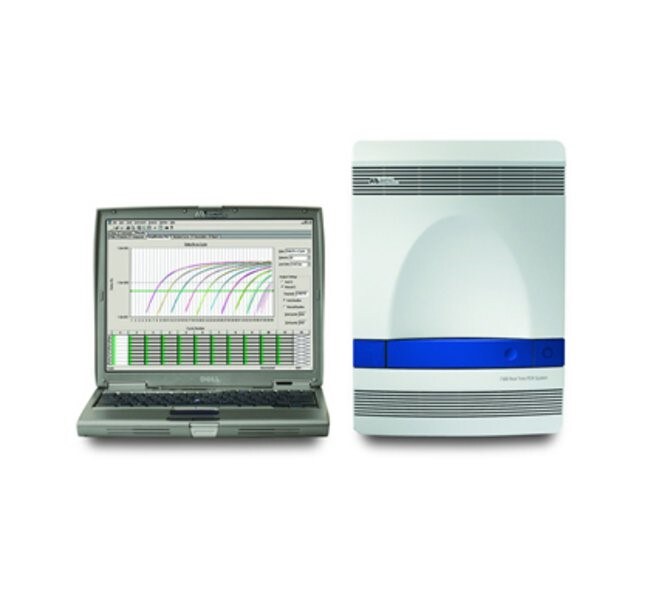
7500 Fast 仪器包(带笔记本电脑)
Meet your pathogen and authenticity testing needs with the Applied Biosystems 7500 Fast Food Safety Real-Time PCR System. This is了解更多信息
| 货号 | 描述 |
|---|---|
| A30299 | 7500Fast(带便携式计算机) |
货号 A30299
价格(CNY)
-
描述:
7500Fast(带便携式计算机)
Meet your pathogen and authenticity testing needs with the Applied Biosystems 7500 Fast Food Safety Real-Time PCR System. This is an integrated and versatile real-time PCR system that combines thermal cycling, fluorescence detection, and application-specific software to measure the cycle-by-cycle accumulation of PCR products in a single-tube homogeneous reaction.
The 7500 Fast Food Safety Real-Time PCR System is compatible with all Thermo Fisher Scientific food safety PCR assays. These assays offer detection of the major pathogens and other important targets in food samples.
Expand your in-house PCR capability beyond day-to-day pathogen testing with the 7500 Fast Real-Time PCR System—a versatile, 96-well platform that provides flexibility to tackle your most challenging test requirements.
• Flexible—five-color detection system allows a variety of applications including gene expression analysis, SNP genotyping, and plus/minus assays that utilize internal positive controls
• Efficient—facilitates processing of multiple assays in the same run
• Convenient 96-well format—minimizes the effort required to perform sample setup and allows the use of tube strips
• Simple intuitive software—enables rapid, straightforward PCR set-up, automatic data interpretation, and traceability of results
• Small instrument footprint—fits easily into laboratory environments where bench space is at a premium
• Instrument service and support—instruments are fully supported by our own service engineers and dedicated, knowledgeable technical team
The 7500 Fast Real-time PCR System is compatible with our SureTect Real-Time PCR Food Pathogen Assays; MicroSEQ, RapidFinder, and TaqMan assays; and RapidFinder Salmonella species, Typhimurium, and Enteritidis Multiplex Assay.
The 7500 Fast Real-Time PCR System delivers high-speed cycling capabilities with a new fast-ramping Peltier-based thermal cycling block. The instrument, Optical Fast 96-well reaction plates, and hot-start DNA polymerase containing master mix comprise the complete Fast system. With this system, quantitative real-time PCR runs can be completed in about 50 minutes with comparable performance to standard run times for supported applications.
The advanced optical configuration supports a broader range of fluorophores, including FAM/SYBR Green I, VIC/JOE, NED/TAMRA/Cy3, ROX/Texas Red, and Cy5 dyes; variable excitation capability allows greater sensitivity for longer wavelength (red) dyes.
The 7500 Fast Food Safety Real-Time PCR System is compatible with all Thermo Fisher Scientific food safety PCR assays. These assays offer detection of the major pathogens and other important targets in food samples.
Expand your in-house PCR capability beyond day-to-day pathogen testing with the 7500 Fast Real-Time PCR System—a versatile, 96-well platform that provides flexibility to tackle your most challenging test requirements.
• Flexible—five-color detection system allows a variety of applications including gene expression analysis, SNP genotyping, and plus/minus assays that utilize internal positive controls
• Efficient—facilitates processing of multiple assays in the same run
• Convenient 96-well format—minimizes the effort required to perform sample setup and allows the use of tube strips
• Simple intuitive software—enables rapid, straightforward PCR set-up, automatic data interpretation, and traceability of results
• Small instrument footprint—fits easily into laboratory environments where bench space is at a premium
• Instrument service and support—instruments are fully supported by our own service engineers and dedicated, knowledgeable technical team
The 7500 Fast Real-time PCR System is compatible with our SureTect Real-Time PCR Food Pathogen Assays; MicroSEQ, RapidFinder, and TaqMan assays; and RapidFinder Salmonella species, Typhimurium, and Enteritidis Multiplex Assay.
The 7500 Fast Real-Time PCR System delivers high-speed cycling capabilities with a new fast-ramping Peltier-based thermal cycling block. The instrument, Optical Fast 96-well reaction plates, and hot-start DNA polymerase containing master mix comprise the complete Fast system. With this system, quantitative real-time PCR runs can be completed in about 50 minutes with comparable performance to standard run times for supported applications.
The advanced optical configuration supports a broader range of fluorophores, including FAM/SYBR Green I, VIC/JOE, NED/TAMRA/Cy3, ROX/Texas Red, and Cy5 dyes; variable excitation capability allows greater sensitivity for longer wavelength (red) dyes.
仅供食品和环境样本检验使用。
For Testing of Food and Environmental Samples Only.
规格
深度(英制)22 in.
深度(公制)56.5 cm
描述7500Fast(带便携式计算机)
显示类型8.4 英寸彩色 TFT LCD
适用于(应用)实时 PCR (qPCR)
适用于(设备)7500 Fast 仪器包
产品规格96 孔板
高度(英制)10.6 in.
高度(公制)27.2 cm
高通量能力兼容高通量应用
最大变温速率3°C/s(模块),1.6°C/s(样品)
数量1 system
反应速度快速
运输条件室温
热量准确度±0.0.25°C(35°C 至 99.9°C)
热量范围0°C 至 100°C
热量均匀性<0.5°C(达到 95°C 后20秒)
用户界面以太网
电压100 至 240 V
重量20.4 kg(45 lb.)
宽度(英制)13 in.
宽度(公制)33 cm
模块配置1 × 96 孔板
容量12 x 8联排管、1 x 96孔板 (Fast)
产品类型PCR仪(热循环仪,基因扩增仪)
Unit SizeEach
套装组件
7500 Fast Real-Time PCR System, laptop, QST
货号
4365464
单位规格
1 system
数量
1
7500 Fast Precision Plate Holder, for 0.1 mL tube strips
货号
A29252
单位规格
1 each
数量
1
RapidFinder™ Express Software v2.0 CD Kit
货号
A28811
单位规格
1 kit
数量
1
MicroAmp™ Cap Installing Tool
货号
4330015
单位规格
1 tool
数量
1
MicroAmp™ Optical 8-Cap Strips
货号
4323032
单位规格
300 strips
数量
1
MicroAmp™ Fast 8-Tube Strip, 0.1 mL
货号
4358293
单位规格
125 strips
数量
1
内容与储存
包括一台实时 PCR 仪器、一台戴尔便携式计算机、RapidFinder Express v2.0 软件和 RNase 板。