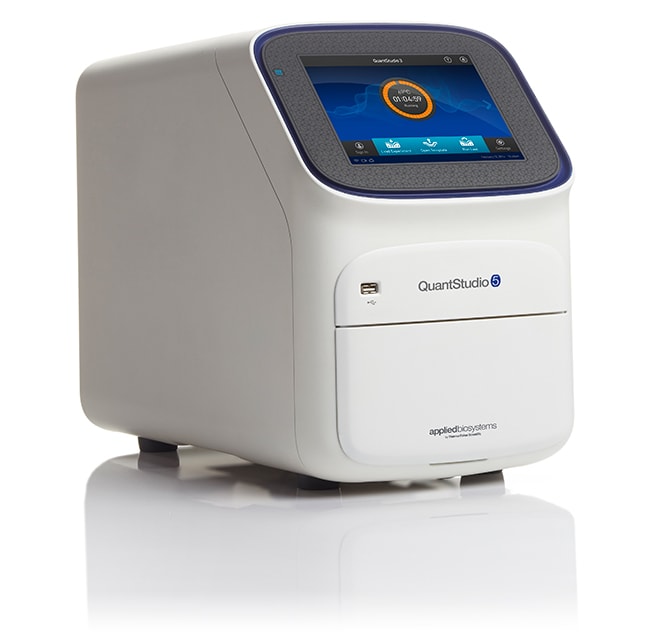
用于人类身份鉴定的 QuantStudio™ 5 实时荧光定量 PCR 系统,96-孔,0.2 mL,台式计算机
Applied Biosystems™

用于人类身份鉴定的 QuantStudio™ 5 实时荧光定量 PCR 系统,96-孔,0.2 mL,台式计算机

使用配置台式机的 Applied Biosystems QuantStudio 5 实时荧光定量 PCR 系统是新一代应用于人类身份鉴定 (HID) 的实时荧光定量了解更多信息
Have Questions?
货号数量
A343221 system
货号 A34322
价格(CNY)
-
申请报价
数量:
1 system
使用配置台式机的 Applied Biosystems QuantStudio 5 实时荧光定量 PCR 系统是新一代应用于人类身份鉴定 (HID) 的实时荧光定量 PCR 产品。该仪器为需要实现简单、可靠和经济实惠的实时荧光定量 PCR 系统(无需’降低性能或质量)的新老用户而设计。该系统使用定量化学技术和 HID 实时荧光定量 PCR 分析软件,为用户提供灵敏的、可靠的法医 DNA 定量解决方案。它还有助于实验室为未来的定量技术做准备。这种 HID 解决方案支持更多染料,并且能够在较小的工作台占地面积内提供准确、可信的结果。

用于人类身份鉴定的 QuantStudio 5 实时荧光定量 PCR 系统特点:

精炼
•较小的占地面积:27 宽 x 50 深 x 40 高 cm,设计上尽可能适用于更多场地空间
•前置全电动化模块

交互式
• 触摸屏界面实现扩增图谱可视化
• 简便而直观的界面

可靠
• 强光 LED 平均使用寿命超过 5 年
• 维护频率较低
• 10 GB 在板存储器可存储 2,000–5,000 次运行
• HID 验证系统
• 0.2 mL 标准 96-孔规格

创新性
• 多通路能力可持续六年,可实现未来定量技术
• 使用 Peltier 控制模块(被称为 VeriFlex 区域)实现精确温度控制
• USB 接口

实时荧光定量 PCR 应用
实时荧光定量 PCR 是一种可用于多种法医应用的灵活的技术:
•法医数据库
    --无直接扩增工作流程的实验室
•法医案例研究
    --男性 DNA 的确证筛选
    --性侵犯样品工作流程
    --质量和数量样品评估

规格
显示类型触摸屏
数量1 system
运输条件室温
模块规格不可互换
Unit SizeEach
内容与储存
台式计算机

常见问题解答 (FAQ)

What is the difference between continuous melt curves and step and hold melt curves on the Applied Biosystems Real-Time PCR Instruments?

Continuous melt curve: increases the temperature by the ramp increment (degrees C/sec) so that the temperature will change at a constant rate set in the protocol.
Step and Hold melt curve: increases the temperature by the ramp increment (degrees C) and then holds at that temperature for the time specified by the user.

The amount of data collected will depend on the filter(s) selected. The more filters you use, the longer the acquisition will take and the fewer data points will be collected.

Find additional tips, troubleshooting help, and resources within our Real-Time PCR and Digital PCR Instruments Support Center.

I am unable to download the current software update for the QuantStudio 5 Real-Time PCR System from the Thermo Fisher website. Why?

We recommend trying different browsers (Google Chrome, Firefox, and Microsoft Edge) and/or removing cookies from your browser. If this does not resolve the issue, please contact Technical Support at techsupport@thermofisher.com.

What is the admin pin for QuantStudio 3 and 5 Real-Time PCR Systems?

If the admin PIN has not been changed, 1234 should work. If it does not work, you can also try 0000.
However, if the admin PIN has been changed and none of the above PINs work, follow the instructions in the QuantStudio 3 and 5 Real-Time PCR Systems manual, page 100.

Find additional tips, troubleshooting help, and resources within our Real-Time PCR and Digital PCR Instruments Support Center.

Is the black frame removable from the QuantStudio 3 and 5 Real-Time PCR Systems 96 well, 0.2 ml block?

We do not recommend physically removing the black frame. It is necessary for the plates to fit properly and should stay on the instrument. If it has been accidently removed or lost, please contact ICS to replace the spare part at (800) 9550-6288 options 3-2 or email technicalhardwaresupport@thermofisher.com.

Find additional tips, troubleshooting help, and resources within our Real-Time PCR and Digital PCR Instruments Support Center.

Can I import a standard curve for my real-time PCR data into the Design & Analysis Software (v2.x)?

It is possible to import a standard curve into the Design & Analysis Software (v2.x) if you are analyzing results from one of the following Applied Biosystems real-time PCR instruments:
• 7900HT Fast Real-Time PCR System
• 7500/7500 Fast Real-Time PCR System
• StepOne/StepOne Plus Real-Time PCR System
• ViiA 7 Real Time PCR System
• QuantStudio 1 Real-Time PCR System
• QuantStudio 3 & 5 Real-Time PCR System
• QuantStudio 6 & 7 Flex Real-Time PCR System
• QuantStudio 6 & 7 Pro Real-Time PCR Systems
• QuantStudio 12K Flex Real-Time PCR system

Follow the instructions below to import a standard curve for analysis in the Design & Analysis Software (v2.x):
1. Open the data file in the Design & Analysis Software (v2.x).
2. Click on Actions.
3. Click on "Standard Curve Analysis Setting".
4. Select "External Standard Curves" and click on "Import".
5. Browse to the proper .csv file and click "Open".
6. Click "Apply".