Search


引用和文献 (38624)
Applied Biosystems™
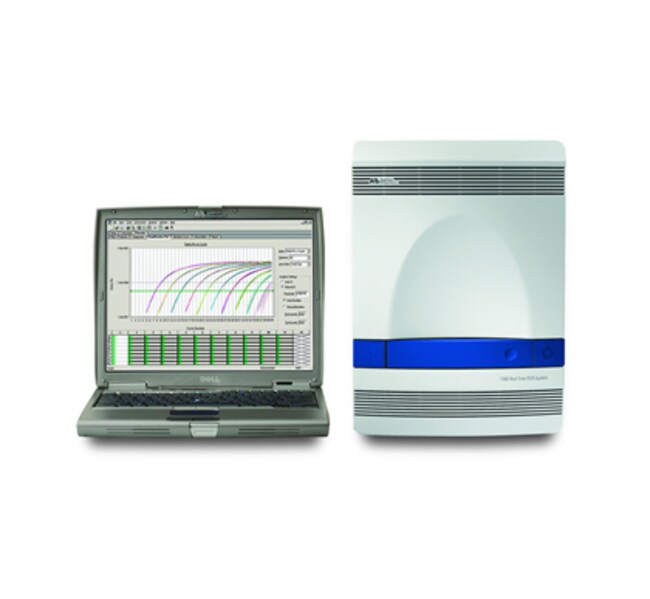
7500 实时荧光定量 PCR 系统,便携式计算机
7500 实时荧光定量 PCR 系统是一个强大的平台,适用于同时需要优异性能和最大限度染料多功能性的实验室。该系统是一个复杂的平台,适用于需要扩展功能和最大多功能性的用户。这款第三代平台采用创新光学系统,可提高灵敏度,让您可使用更广泛的荧光基团。3其可变激发功能更可支持更长波长(红色)的染料,实现更高灵敏度。•强大的五色平台经最广泛的可用染料范围校准:FAM™⁄SYBR®了解更多信息
| 货号 | 数量 |
|---|---|
| 4351104 | 1 system |
货号 4351104
价格(CNY)
-
数量:
1 system
7500 实时荧光定量 PCR 系统是一个强大的平台,适用于同时需要优异性能和最大限度染料多功能性的实验室。该系统是一个复杂的平台,适用于需要扩展功能和最大多功能性的用户。这款第三代平台采用创新光学系统,可提高灵敏度,让您可使用更广泛的荧光基团。3其可变激发功能更可支持更长波长(红色)的染料,实现更高灵敏度。
•强大的五色平台经最广泛的可用染料范围校准:FAM™⁄SYBR® Green I、VIC®⁄JOE™、NED™⁄ TAMRA™⁄ Cy3™、ROX™⁄Texas Red 和 Cy5™ 染料
•专业的光学系统可以轻松准确地对新染料进行校准,无需添加新的滤光片组
•先进的多组分算法可最大限度地减少光谱串扰 –对于多通路有优势
•用户友好型软件包括微孔板设置向导、多板数据查看功能以及使数据处理简单和直接的先进的分析工具
新 - 7500 软件 v2.x
现在,易于使用的 StepOne 软件可用于带有 7500 软件 v2.x 升级功能的 7500 和 7500 Fast 系统。7500 软件 v2.x 结合您最喜欢的 StepOne 软件功能,如各种微孔板设置向导、标准曲线稀释液和预混液配方计算器、QC 标签、数据过滤器以及运行完成时电子邮件通知。7500 软件 v2.x 还包括增强的基因表达研究包,有多种新的熔解曲线协议选项,包括多个峰检测、步骤和保持温度控制以及可定制的升降温速度。
新型基因表达研究包比任何其他仪器软件包都能更好地适应广泛的研究:
•将无限数量的Comparative CT(相对定量)文件导入一项研究
•将样品进行分组,并通过技术复制组和生物学复制组查看数据
•使用任何基因作为内源性对照,包括同时对多个对照品进行平均
•在 RQ 结果中输入要计算的已知效率值
21 CFR 第 11 部分可用模块
SDS v1.4 21CFRp 11 模块是协助符合 21CFRp11 要求的强大工具,同时仍然能够提供用户可定制的配置设置的灵活性。
•可为最多四个用户组添加单个用户登录,每个组都具有指定的权限设置
•用户可定制的权限设置包括 14 种系统活动、电子签名授权、以及其他安全设置,可让您最大程度地控制合规性工作
•可根据您的可追溯性需求启用或禁用审查跟踪
•电子签名的选择可以简化工作流程中的电子签名
支持多种应用
应用包括基因表达分析、病原体定量分析、SNP 基因分型、等温反应以及利用内部阳性对照的 +⁄– 测定。为了促进许多应用,Applied Biosystems® 提供预先配制的即用型、经过质量检测的 TaqMan® 分析,用于与 7500 系统配合使用。现在您可以减少您的测定优化工作。
升级至高速热循环
可选升级至 7500 Fast 系统。这种 7500 Fast 系统采用我们的预混液配方,使您能够将实时荧光定量 PCR 运行的时间缩短至 30 几分钟。
仅供研究使用。不适用于诊断用途。
•强大的五色平台经最广泛的可用染料范围校准:FAM™⁄SYBR® Green I、VIC®⁄JOE™、NED™⁄ TAMRA™⁄ Cy3™、ROX™⁄Texas Red 和 Cy5™ 染料
•专业的光学系统可以轻松准确地对新染料进行校准,无需添加新的滤光片组
•先进的多组分算法可最大限度地减少光谱串扰 –对于多通路有优势
•用户友好型软件包括微孔板设置向导、多板数据查看功能以及使数据处理简单和直接的先进的分析工具
新 - 7500 软件 v2.x
现在,易于使用的 StepOne 软件可用于带有 7500 软件 v2.x 升级功能的 7500 和 7500 Fast 系统。7500 软件 v2.x 结合您最喜欢的 StepOne 软件功能,如各种微孔板设置向导、标准曲线稀释液和预混液配方计算器、QC 标签、数据过滤器以及运行完成时电子邮件通知。7500 软件 v2.x 还包括增强的基因表达研究包,有多种新的熔解曲线协议选项,包括多个峰检测、步骤和保持温度控制以及可定制的升降温速度。
新型基因表达研究包比任何其他仪器软件包都能更好地适应广泛的研究:
•将无限数量的Comparative CT(相对定量)文件导入一项研究
•将样品进行分组,并通过技术复制组和生物学复制组查看数据
•使用任何基因作为内源性对照,包括同时对多个对照品进行平均
•在 RQ 结果中输入要计算的已知效率值
21 CFR 第 11 部分可用模块
SDS v1.4 21CFRp 11 模块是协助符合 21CFRp11 要求的强大工具,同时仍然能够提供用户可定制的配置设置的灵活性。
•可为最多四个用户组添加单个用户登录,每个组都具有指定的权限设置
•用户可定制的权限设置包括 14 种系统活动、电子签名授权、以及其他安全设置,可让您最大程度地控制合规性工作
•可根据您的可追溯性需求启用或禁用审查跟踪
•电子签名的选择可以简化工作流程中的电子签名
支持多种应用
应用包括基因表达分析、病原体定量分析、SNP 基因分型、等温反应以及利用内部阳性对照的 +⁄– 测定。为了促进许多应用,Applied Biosystems® 提供预先配制的即用型、经过质量检测的 TaqMan® 分析,用于与 7500 系统配合使用。现在您可以减少您的测定优化工作。
升级至高速热循环
可选升级至 7500 Fast 系统。这种 7500 Fast 系统采用我们的预混液配方,使您能够将实时荧光定量 PCR 运行的时间缩短至 30 几分钟。
仅供研究使用。不适用于诊断用途。
仅供科研使用。不可用于诊断程序。
规格
已校准染料SYBR™ Green I、ROX™、NED™、TAMRA™、JOE™、Texas Red™、Cy5™、VIC™、FAM™、Cy3™
尺寸宽度 34 cm (13.39 in.),深度 45 cm (17.72 in.),高度 49 cm (19.29 in.)
动态范围9个对数级
电气要求950 W
外部计算机资料:Intel Core 2 Duo T5500 (1.66 GHz)、8X DVD、80 GB HD、1.0 G DDR2-533 MHz SDRAM
适用于(设备)7500 系统
产品规格96 孔板
高通量能力多重
最大加热速率(隔热块)2.5°C
光学CCD 相机、5个激发滤光片、钨卤素灯、5个发射滤光片
参比荧光染料ROX(分离管)、无 ROX、ROX(预混)
峰值模块变温速率2.5°C⁄s
精确度99.7% 置信度(5000 & 10000 拷贝)
数量1 system
反应速度标准
反应体积范围20-100 μL
样品变温速率± 1.1°C⁄s
灵敏度1拷贝的 RNase P 基因(人基因组 DNA)
软件兼容性Primer Express、21 CFR Part 11 模块(可选)、7500 系统软件(包含 RQ)
温度范围(公制)4 至 100°C
热量准确度0.25°C(3 min 后为 35°C 至 95°C)
热循环系统基于 Peltier 的系统
热量均匀性0.50°C(30 sec 后)
通量4至5个96孔板/8小时/天
电压120V
重量34 kg (75 lb.)
Unit SizeEach
内容与储存
笔记本电脑
常见问题解答 (FAQ)
Why are there no RQ values for all the samples in my study from the 7500 or 7500 Fast Real-Time PCR System software?
Why do I not see any CT or RQ values from my ddCT experiment in the software for the 7500 or 7500 Fast Real-Time PCR System?
What can I do when I get the error message "Time too short" on the 7500 or 7500 Fast Real-Time PCR System?
What can I do if I get an error message about "Block Up Switch" on the 7500 or 7500 Fast Real-Time PCR System?
On the 7500 and 7500 Fast Real-Time PCR Systems, what can I do if I get an error message about "CCD acquisition failure"?
引用和文献 (38624)
引用和文献
Abstract
Role of APE1 in differentiated neuroblastoma SH-SY5Y cells in response to oxidative stress: Use of APE1 small molecule inhibitors to delineate APE1 functions
Journal:DNA REPAIR
PubMed ID:
Oxidative DNA damage has been implicated in a number of central nervous system pathologies. The base excision repair (BER) pathway is one of the most important cellular protection mechanisms that respond to oxidative DNA damage. Human apurinic (apyrimidinic) endonuclease/redox effector factor (APE1/Ref1 or APE1) is an essential enzyme in the
Characterization of matrix metalloproteinase-2 and matrix metalloproteinase-9 and their inhibitors in equine granulosa cells in vivo and in vitro
Journal:JOURNAL OF ANIMAL SCIENCE
PubMed ID:
Matrix metalloproteinases (MMP) and tissue inhibitors of MMP (TIMP) regulate tissue remodeling events necessary for ovulation. Thus, changes in MMP and TIMP expression and protein enzyme activity were examined in vivo and in vitro during follicular development and atresia in the horse. Equine granulosa cells and follicular fluid from medium
Characterization of matrix metalloproteinase-2 and matrix metalloproteinase-9 and their inhibitors in equine granulosa cells in vivo and in vitro
Journal:JOURNAL OF ANIMAL SCIENCE
PubMed ID:
Matrix metalloproteinases (MMP) and tissue inhibitors of MMP (TIMP) regulate tissue remodeling events necessary for ovulation. Thus, changes in MMP and TIMP expression and protein enzyme activity were examined in vivo and in vitro during follicular development and atresia in the horse. Equine granulosa cells and follicular fluid from medium
The time of prenatal immune challenge determines the specificity of inflammation-mediated brain and behavioral pathology.
Journal:J Neurosci
PubMed ID:16672647
Disturbance to early brain development is implicated in several neuropsychiatric disorders including autism, schizophrenia, and mental retardation. Epidemiological studies have indicated that the risk of developing these disorders is enhanced by prenatal maternal infection, presumably as a result of neurodevelopmental defects triggered by cytokine-related inflammatory events. Here, we demonstrate that
Distinct roles for IFN regulatory factor (IRF)-3 and IRF-7 in the activation of antitumor properties of human macrophages.
Journal:Cancer Res
PubMed ID:17079482
When properly activated, macrophages can be tumoricidal, thus making them attractive additions to standard cancer therapies. To this end, tolerance and activity of human autologous IFN-gamma-activated macrophages, produced in large scale for clinical use (MAK cells), have been assessed in pilot trials in cancer patients. In the present study, we